What this article covers: How to invite colleagues and lawyers to ClaimScore, manage their roles, and understand the difference between Organization access and Case access.
Two Levels of Access
ClaimScore has two distinct levels of membership, and it's important to understand the difference before inviting anyone:
Organization Members — People who belong to your organization in ClaimScore. They can be given access to multiple cases within the organization.
Case Members — People added specifically to a single case.
All of this is managed from Permissions in the left sidebar.
How to Get There
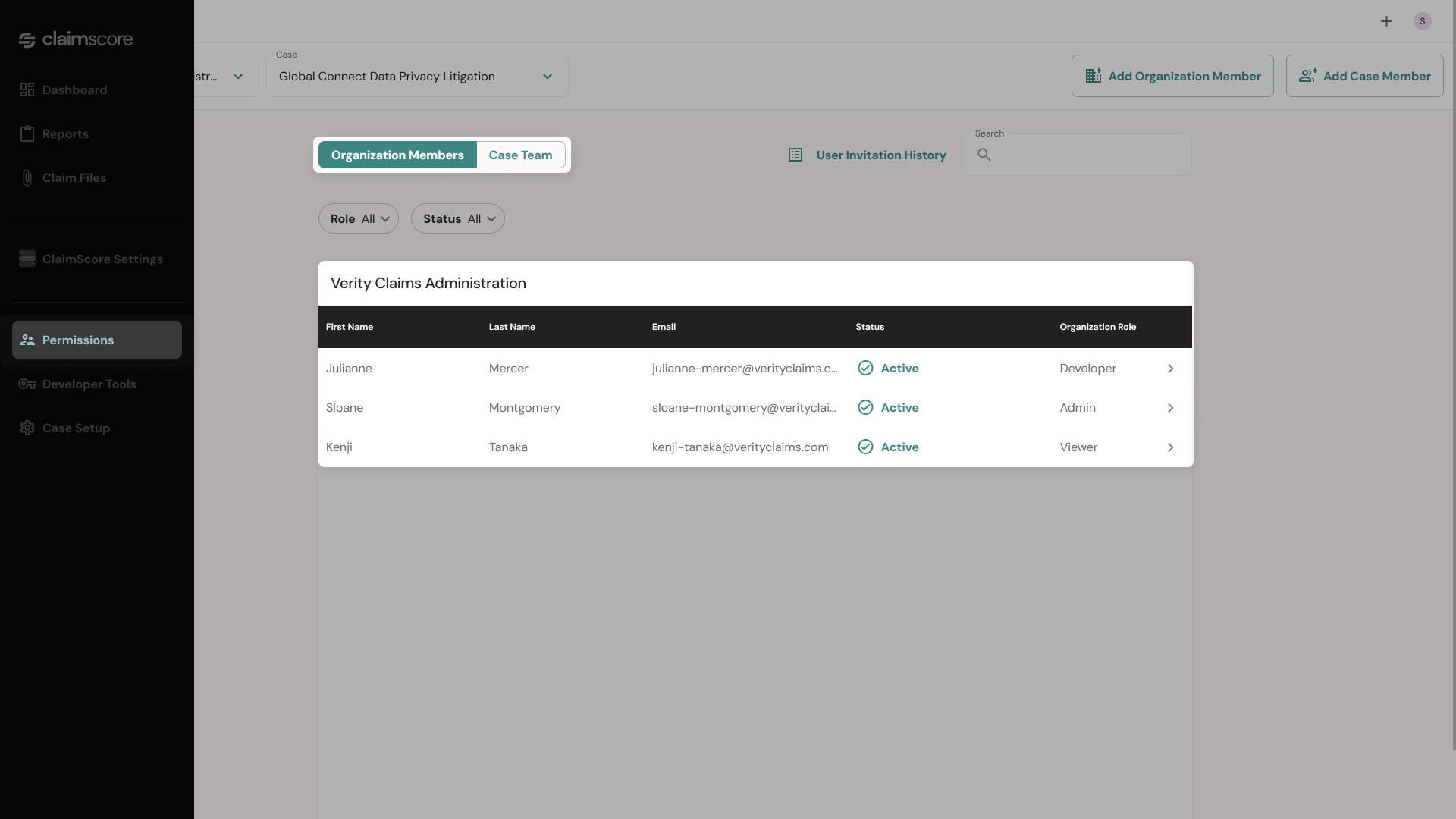
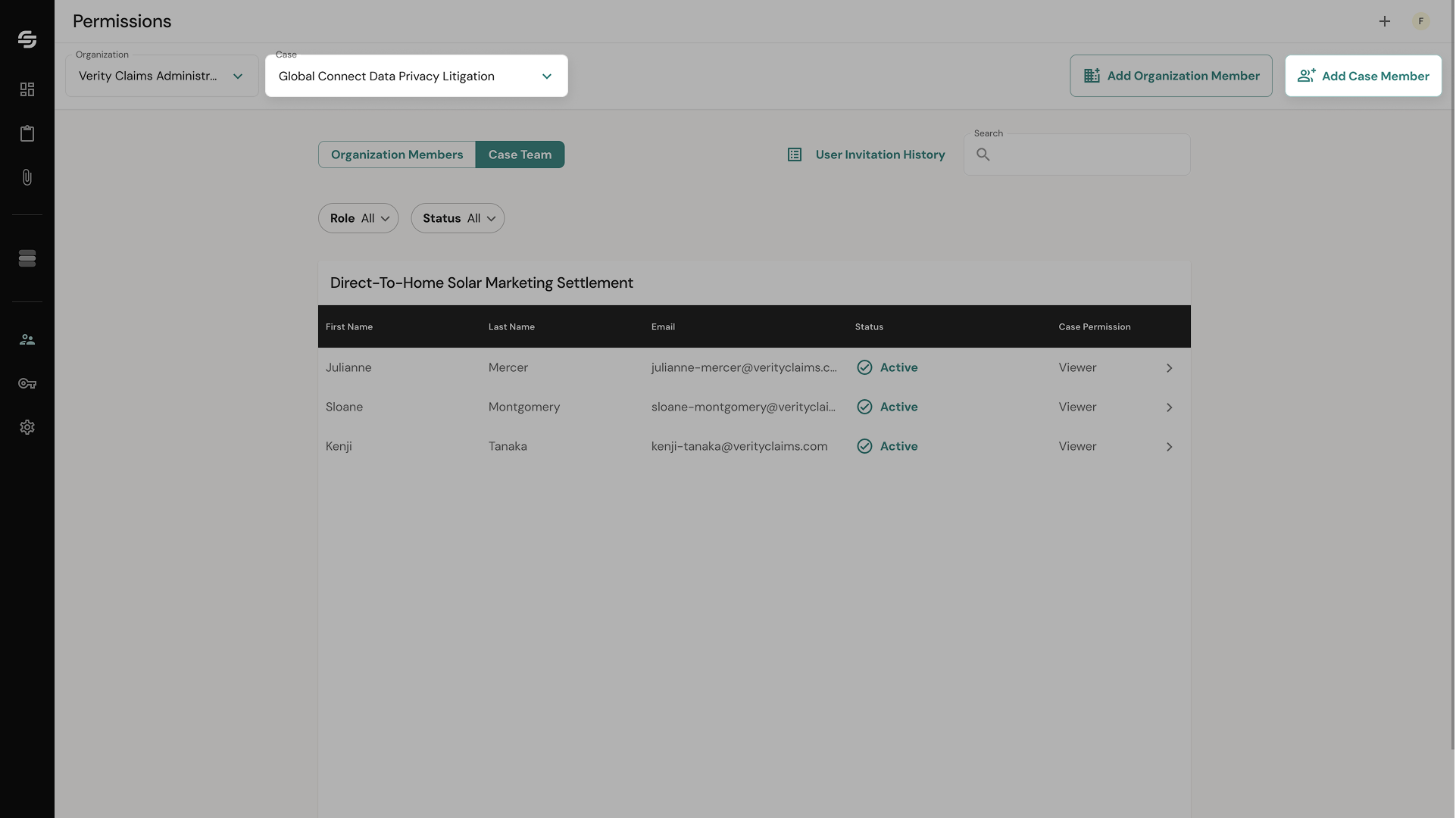
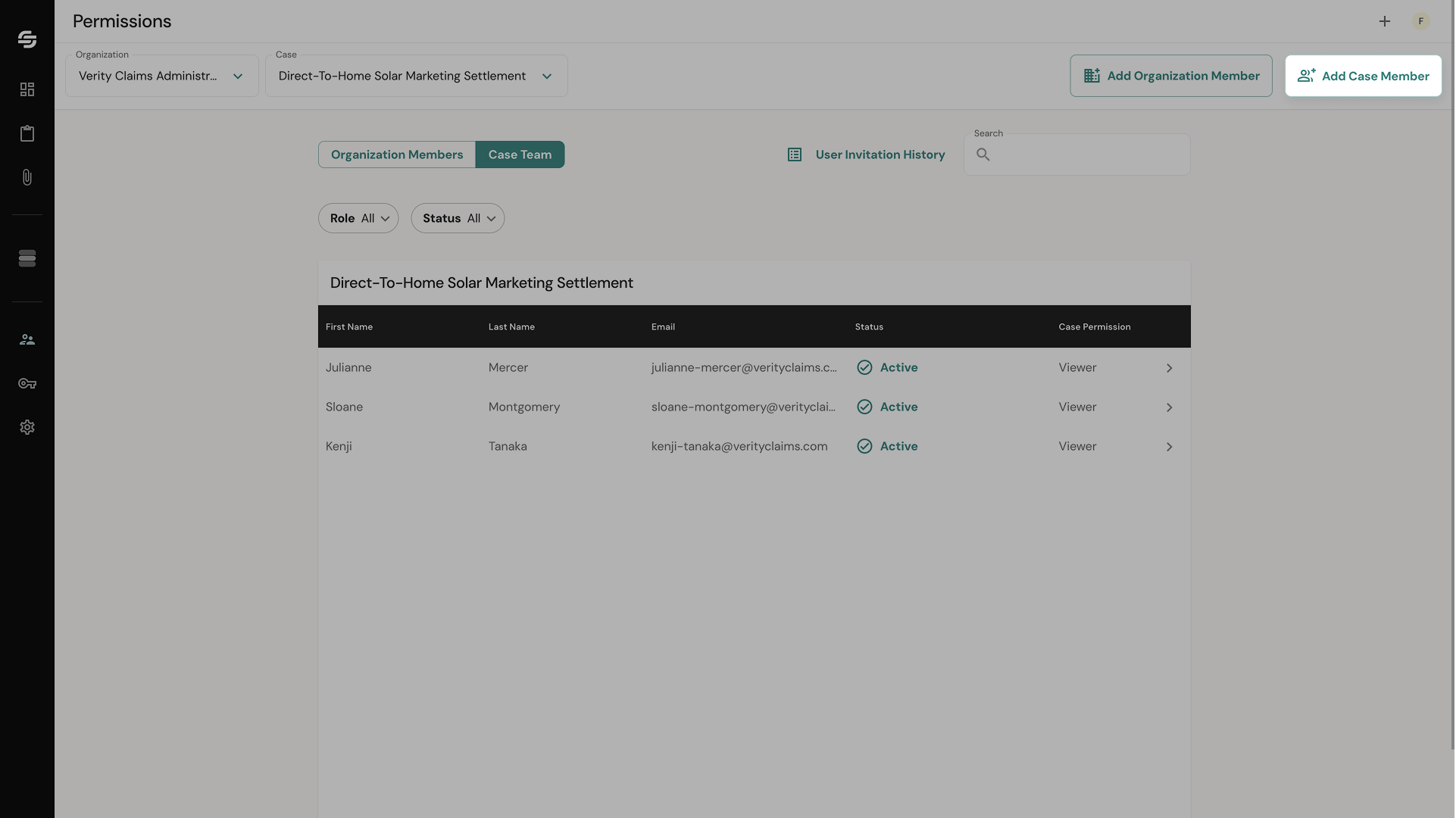
Click Permissions in the left sidebar. The page opens on the Organization Members tab by default. You'll also see a Case Team tab for case-level access.
Inviting Organization Member
Step 1 — Start the organization invitation process
First, make sure you have selected the case for which you intend to add new members, in your top navigation's case select button.
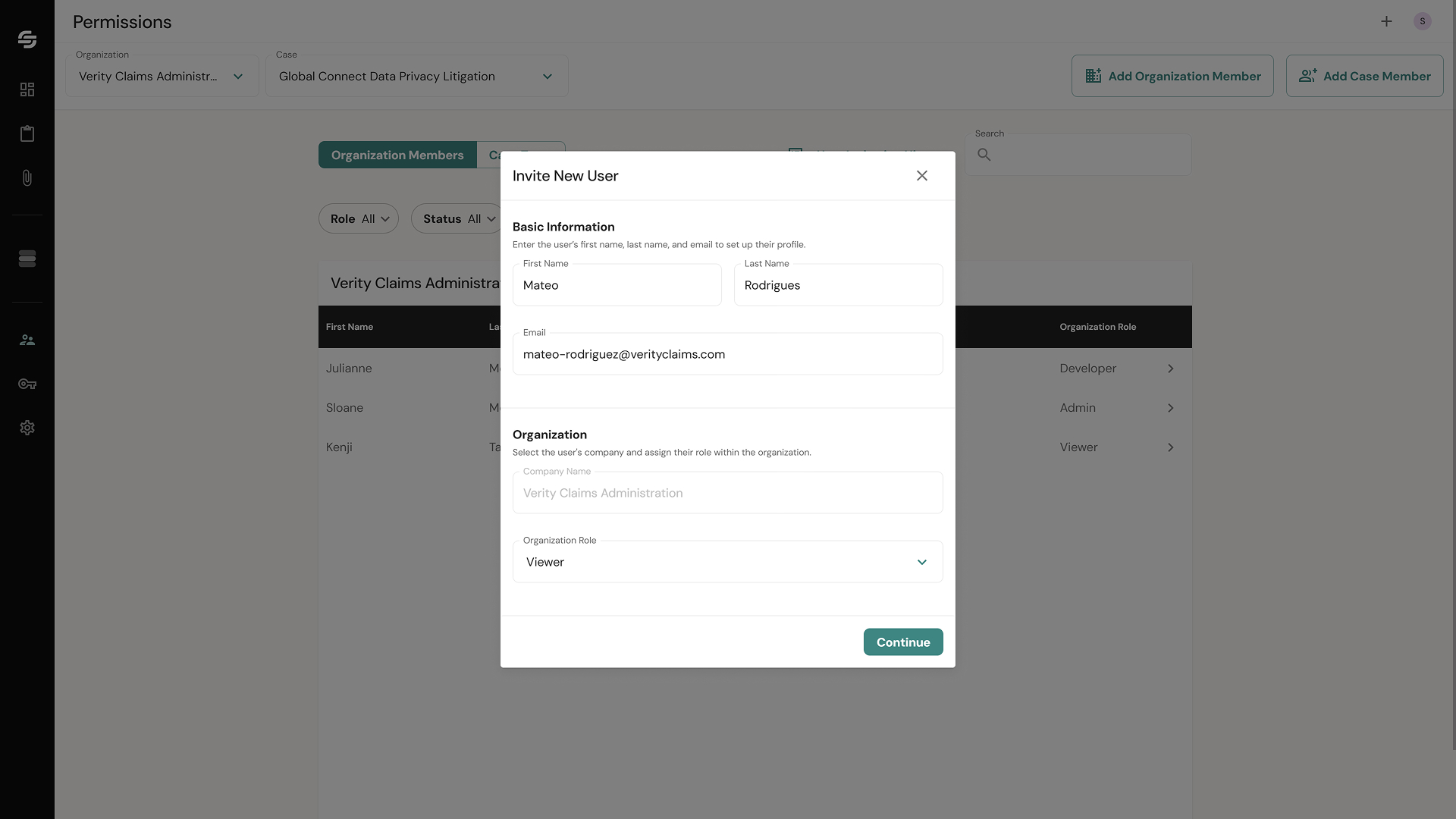
Click the "+" button at the top-right of the screen from anywhere in the app, or navigate to the Permissions screen and click on Add Organization Member.
Step 2 — Fill in the invitation details
An invitation form will appear. Enter the new member's first name, last name, and email address; then confirm you've selected the correct organization to invite them to, and select their role.
Assignable organization roles include:
Admin — Can manage cases, members, and settings.
Viewer — Read-only access.
Developer — Access to developer tools alone.
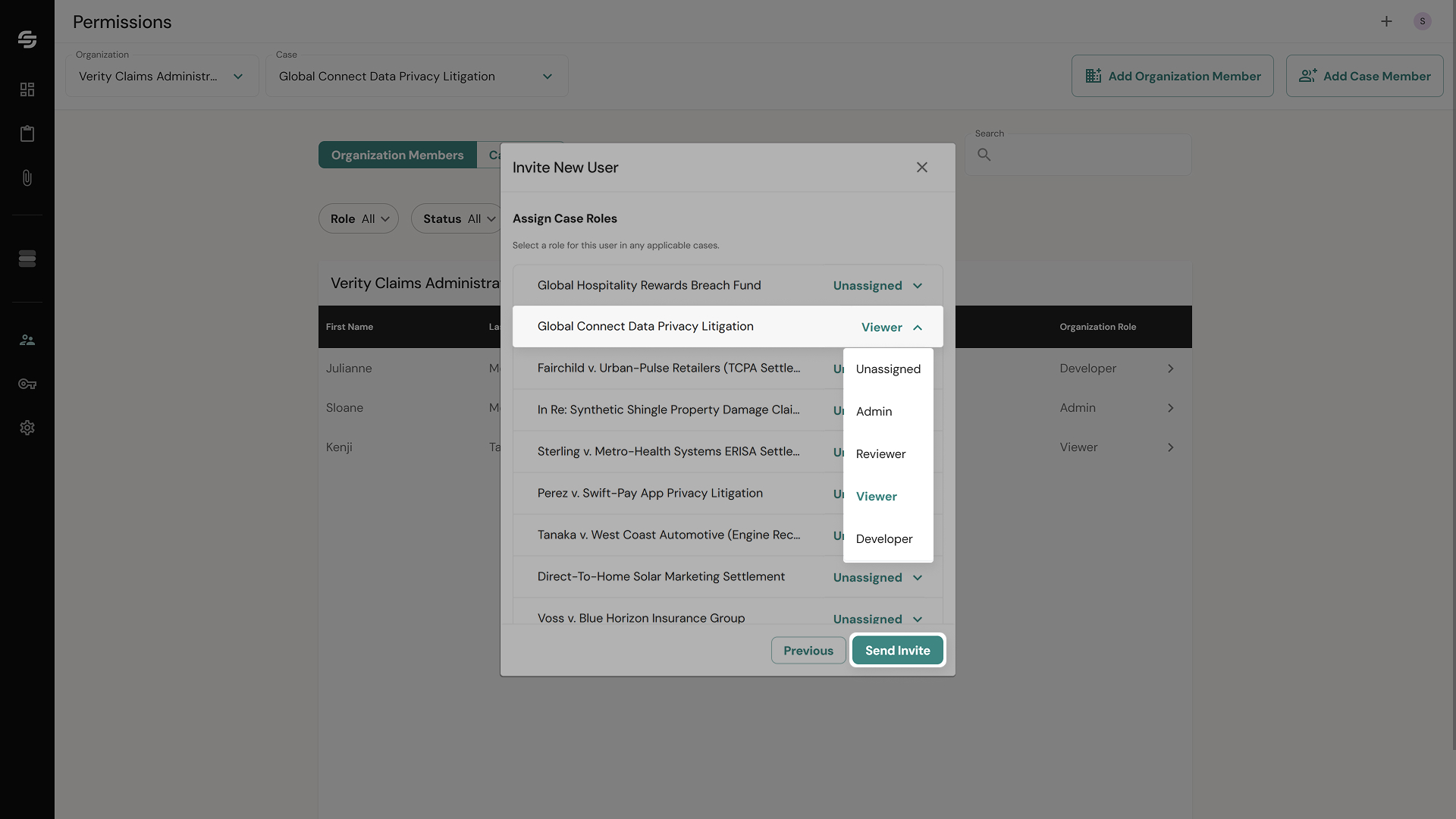
You will see a list of existing cases in your organization. Click on the Unassigned select button, and choose a case role for any of them; they will not have permissions to any case left unassigned. After you’re done click send invite
💡 Tip: More information on case roles and their capabilities found in "Step 3 — Assign new roles" for Add Case Member instructions.
Step 3 — Send the invitation
Submit the form. ClaimScore sends an invitation email to the address you entered. The invitation appears in the Invitations list with a status of Pending Activation.
Add Case Member
Step 1 — Start the case invitation process
Click the "+" button at the top-right of the screen from anywhere in the app, or navigate to the Permissions screen and click on Add Case Member.
Step 2 — Select or add organization members
Select one or more current organization members to add to the active case. If the person you're looking for is not in your organization yet, click on Add Organization Member, then continue with the invitation process.
Step 3 — Assign new roles
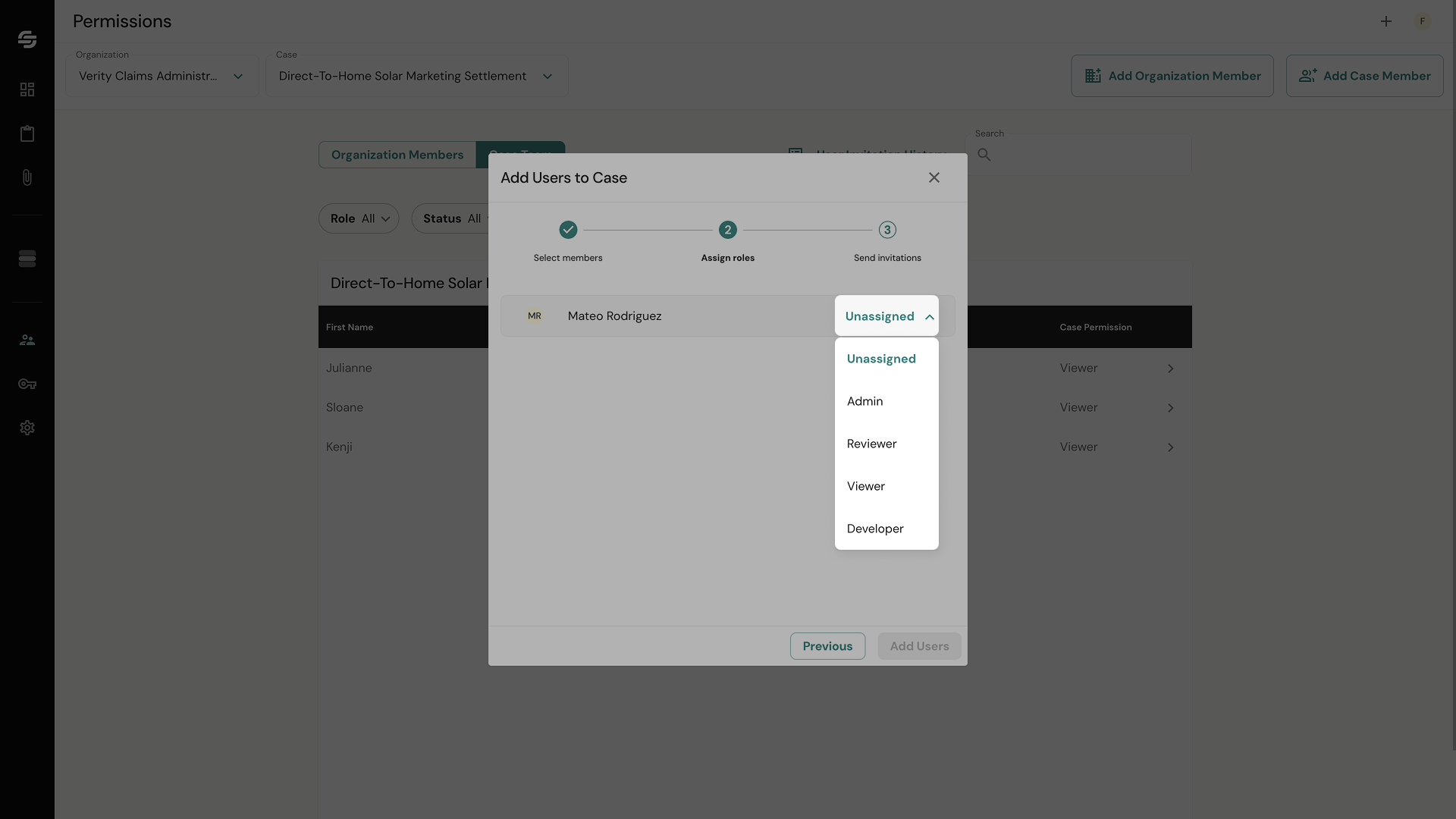
A list of the previously selected users will appear. Click on the Unassigned select to open the menu and pick a new role for each new case team member.
Assignable case roles include:
Admin — Can manage case and ClaimScore settings, set permissions, import and export data.
Reviewer — Upload claims files, and schedule reports.
Viewer — Read-only access.
Developer — Access to developer tools alone.
Select the role that matches what this person needs to do. For a lawyer who only needs to check case progress, Viewer is usually appropriate.
Step 4 — Add users to the case
Click on Add Users. ClaimScore sends an email notification to the new team members with a link to visit the case.
Understanding Invitation Statuses
You can track all invitations by clicking User Invitation History on the Permissions page, or by navigating to the Invitations view. Each invitation has a status:
Status
What it means
Pending Approval
The invitation has been sent but requires internal approval before the user can activate
Pending Activation
The invitation was sent and is waiting for the recipient to accept and set up their account
Active
The user has accepted the invitation and has access
Rejected
The invitation was declined or denied
Invitation Expired
The invitation was not accepted within the validity window
The invitation list can be filtered by Status, Role, Timeframe, and Approval. There's also a search bar to find specific invitations.
Resending an Expired Invitation
If a colleague says they never received their invitation, or if the invitation has expired:
Go to Permissions → User Invitation History
Find the person's invitation in the table
Click their row to open the Invitation Details panel on the right
The panel shows their email, current status (e.g., "expired"), invitation date, and expiration date
Click Resend Invitation to send a fresh invitation to the same email address
Viewing Current Members
The Organization Members tab shows everyone currently in your organization with columns for: First Name, Last Name, Email, Status, and Organization Role.
To change a user's role:
Click on the user's name in the table to open a details drawer on the right side of the screen.
In the drawer, you'll see the user's information along with a role selector.
Use the role selector to assign a new role. This can be updated at any time.
What Happens When Someone Accepts
When the invited person clicks the link in their email, they'll go through account activation. Once complete, their invitation status changes to Active and they appear in the Organization Members or Case Team list with their assigned role.